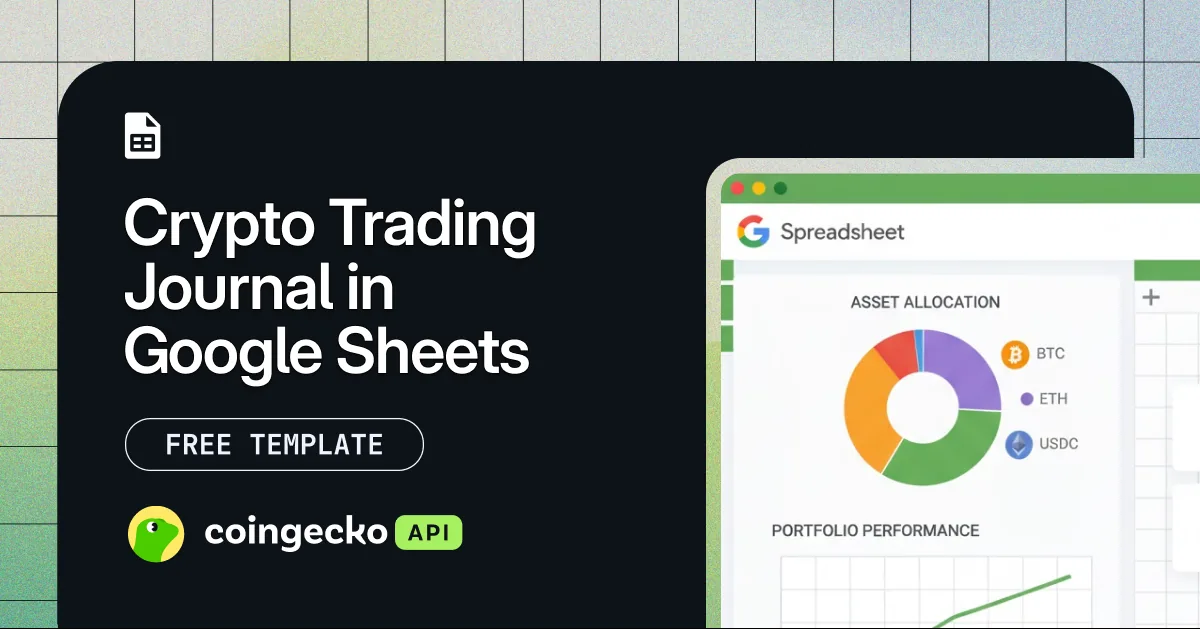
A crypto trading journal is essential for any serious trader or investor. It helps you stay organized, learn from past trades, and refine your strategy. One of the best ways to maintain one is using Google Sheets, as it’s easily accessible and customizable. This free crypto trading journal Google Sheets template is designed to help you get started. It automatically tracks your trades, calculates profit and loss (PnL), and analyzes your performance in real-timeusing live crypto data powered by the CoinGecko API. Whether you’re trading Bitcoin, stablecoins, or on-chain tokens, the template gives you a clean, visual way to measure your trading results, identify patterns, and refine your strategy.
What This Free Template Offers
- Real-time data updates powered by the CoinGecko Google Sheets Add-on.
- PnL tracking, showing both realized and unrealized performance.
- Dynamic dashboards to monitor your portfolio growth and win rate.
- Extensive token support, covering over 17 million+ tokens from 1,700+ exchanges and 250+ networks via CoinGecko and GeckoTerminal data integration.
To get started and follow along with the setup steps, you can make a copy of the free Google Sheets template using the download link at the end of this article.
Prerequisites
Before you start, ensure the following requirements are met to use the template effectively:
- A CoinGecko API key:
A CoinGecko API key is required to fetch live crypto prices. The free Demo API key is sufficient to get started, while a Pro plan offers higher rate limits for more frequent data refreshes. You can follow our guide to get your free Demo API key. - A Google Account:
You’ll need a Google account to open, copy, and use the template in Google Sheets. This allows you to save your own version and enable Apps Script for live data connections. - CoinGecko Google Sheets Add-on:
This template uses the official CoinGecko Google Sheets add-on to fetch live and historical crypto prices directly into your spreadsheet using the=COINGECKO()function.
How to Use the Crypto Trading Journal Google Sheets Template
This section provides a step-by-step guide on how to set up the template. Follow these instructions to install the CoinGecko add-on, configure your connection, customize your coin list, and log your first trade.
Setting up the CoinGecko Add-on
First, connect the template to the CoinGecko Google Sheets add-on to enable live and historical price data within the spreadsheet. To get started, install the add-on and configure your API credentials (Subscription Level and API Key) by following the setup guide.
Once configured, all =COINGECKO() formulas across the template will automatically fetch the required data. You don’t need to modify any formulas or configure scripts manually.
Refreshing Crypto Price Data
Now that the CoinGecko add-on is configured, your data will be fetched automatically through the =COINGECKO() formulas across the template, allowing you to retrieve crypto data directly (e.g., =COINGECKO("id:bitcoin") for individual tokens) without any manual setup.
However, Google Sheets may cache results for a short period of time. If you need the most up-to-date prices, you can manually refresh all data in your sheet. Keep in mind that more frequent refreshes will consume your API call credits faster. If you run into rate limits, consider upgrading to a paid API plan for higher call credits and rate limits.
Once the add-on status is Live, you can start customising the template by adding the tokens you want to track in the following section.
Adding Coins to the Template
The template tracks the top 1000 cryptocurrencies by market cap by default using the =COINGECKO("top:1000") function. To track other assets, such as specific on-chain tokens, you can add them manually in the Add Coins sheet. The information required depends on whether the asset is listed on CoinGecko or is an on-chain token tracked on GeckoTerminal.
-
For Coins found on CoinGecko:
Set the Source to CoinGecko and enter its API ID. You can find the API ID on any individual coin page on the CoinGecko website. -
For Onchain Tokens:
Set the Source to GeckoTerminal, select the Network ID (for example, bsc for BNB Chain), enter the Token Name and Token Contract Address. To find the Network ID and Token Contract Address, head to the individual token page on GeckoTerminal- Name (On-Chain) can be found in the token info page.
- The Network ID is found in the URL path (e.g., bsc in https://www.geckoterminal.com/bsc/pools/0xaead6bd31dd66eb3a6216aaf271d0e661585b0b1)
- Token Contract Address for the base token is listed in the pool details.
After adding assets, the template automatically fetches the required data using the =COINGECKO() formulas.
If you need to update prices instantly, open the CoinGecko sidebar and click “Refresh All Data” to force-refresh all values, as Google Sheets may cache results temporarily.
Your newly added assets will appear in the Available Coins sheet, starting from row 1002, directly below the default Top 1000 list. Once added, you only need to register a coin once for it to remain available for selection in your Staking Log. If a coin doesn’t appear, verify the Source, CoinGecko ID, Network ID, and Token Contract Address, then refresh the data.
Logging Your Trades in the Trading Journal Sheet
Once your coins are added, you can start recording your trades in the Trading Journal Sheet. This is where you log every buy or sell to track your performance and portfolio value accurately.
To customize the dropdown options for trading categories, navigate to column “AC” in the Trading Journal sheet and edit the reference list. Using categories helps you analyze which trading strategies (e.g., ‘Scalping’, ‘Swing Trade’, ‘HODL’) are most profitable over time.
Analyzing Trades in the Dashboard
Once your trades are logged, head to the Portfolio Dashboard and Asset Analysis sheets to review your performance. All charts and summary tables automatically update whenever new trades are added or when live market data refreshes. The dashboards will automatically recalculate and display your most recent PnL, portfolio distribution, and trading performance metrics.
Portfolio Dashboard Sheet
This sheet provides a comprehensive overview of your trading portfolio and is split into two sections:
-
Portfolio Overview: Provides a snapshot of your overall portfolio health. It combines your realized profits, open position values, and asset allocations to show how your balance changes over time and where your capital is distributed across different coins.
- Balance Overview: Portfolio Trend based on Realised PnL and Position values.
- Current Holding’s Distribution: Portfolio distribution based on open positions’ values in USD.
- Traded Coins Analytics: A summary table listing all open and closed positions. Each coin is sorted by name with details such as position value, position size, total trades, realized and unrealized PnL, and current trade status.
-
Performance Insights: Highlights overall trading performance.
- A summary table showing total trades, win rate, average gain, average loss, and maximum drawdown.
- Balance Breakdown: Displays how each coin has contributed to your portfolio through realized profits and open position values.
- Trades Distribution: Shows the frequency of trades by category, helping you understand which trading styles you use most often.
Asset Analysis Sheet
This sheet allows you to perform a deep-dive analysis on a single asset. In cell “A2”, select a coin from the dropdown menu to populate the dashboard with its specific performance data.
-
Individual Asset Analysis
A breakdown on your performance for a specified asset.- Total PnL: Combines realized and unrealized profit or loss for the selected coin. It reflects your overall performance from all trades involving that asset.
- Profit by Trading Style: Breaks down profits and losses based on your chosen trade categories. This helps identify which strategies are performing best.
- Trade Breakdown: Lists every trade for the selected coin, including details like date, price, quantity, and PnL. The final column is for post-trade reflections, allowing you to add notes on what went right or wrong to inform future decisions.
-
Asset Performance: Shows live metrics including the asset’s current price, market cap, and 24-hour change in market cap.
These dashboards provide both a high-level portfolio overview and in-depth performance insights for each asset, making it easy to track progress and refine your trading approach.
Creating a Crypto Trading Journal in Google Sheets
Creating a crypto trading journal in Google Sheets involves three main components:
a live data source for fetching crypto prices, a structured log for recording trades, and a dashboard for analyzing performance.
This template integrates all three seamlessly into one connected system powered by the CoinGecko Google Sheets add-on, allowing you to fetch live market data directly using simple =COINGECKO() formulas:
- Live Crypto Market Data
Live prices and market data are fetched directly using the CoinGecko Google Sheets add-on. By using the=COINGECKO()function, the template retrieves real-time data for a wide range of crypto assets without requiring any custom scripts or manual setup. - Google Sheets Formulas and Tables
Use built-in Sheets formulas to calculate all key trading metrics such as position value, realized and unrealized PnL, and total portfolio balance. All calculations update dynamically whenever new trades are logged or when market data refreshes. - Structured Trade Logging
A dedicated Trading Journal sheet lets you record every transaction with clear fields for date, coin, buy/sell, quantity, price, category, and notes. This structured log forms the foundation for all calculations and dashboard visuals. - Interactive Dashboards
Use pivot tables and charts to create dashboards that summarize performance, asset allocation, and trading patterns visually for quick insights.
How to Get Live Crypto Data in Google Sheets
You can get real-time crypto data in Google Sheets using two different approaches, depending on your preferred level of control and customization.
Option 1 (Recommended): Using the CoinGecko Add-on
The simplest way is to use the official CoinGecko Google Sheets add-on with the =COINGECKO() function. This method is fully integrated into the template and allows you to fetch live crypto prices directly, including on-chain tokens (e.g.,=COINGECKO("base:0x1111111111166b7fe7bd91427724b487980afc69")), without any coding or manual setup.
Option 2 (Advanced): Using Apps Script
For users who require more flexibility, you can fetch data directly from the CoinGecko API using Google Apps Script. This approach gives you fine-grained control over the request parameters, such as specifying dates, currencies, and endpoints, as well as how the returned data is structured and used within your sheet. This involves creating custom functions (such as ImportJSON) to call specific API endpoints and retrieve market data into your sheet.
Step 1: Create an ImportJSON Script
First, create the main function that will fetch and parse the data.
Open your Google Sheet and navigate to ‘Extensions’ and select ‘Apps Script’ – a new tab will appear.
On the left panel, select ‘< > Editor’ and add a new script using the ‘+’ button. Copy and paste the following importJSON script, and save the script as ‘ImportJSON’. This importJSON script is a versatile one that will allow you to import data in many different ways.
/*====================================================================================================================================*
ImportJSON by Brad Jasper and Trevor Lohrbeer
Version: 1.5.0
Project Page:
Copyright: (c) 2017-2019 by Brad Jasper
(c) 2012-2017 by Trevor Lohrbeer
License: GNU General Public License, version 3 (GPL-3.0)
http://www.opensource.org/licenses/gpl-3.0.html
A library for importing JSON feeds into Google spreadsheets. Functions include:
ImportJSON For use by end users to import a JSON feed from a URL
ImportJSONFromSheet For use by end users to import JSON from one of the Sheets
ImportJSONViaPost For use by end users to import a JSON feed from a URL using POST parameters
ImportJSONAdvanced For use by script developers to easily extend the functionality of this library
ImportJSONBasicAuth For use by end users to import a JSON feed from a URL with HTTP Basic Auth (added by Karsten Lettow)
For future enhancements see
For bug reports see
Changelog:
1.6.0 (June 2, 2019) Fixed null values (thanks @gdesmedt1)
1.5.0 (January 11, 2019) Adds ability to include all headers in a fixed order even when no data is present for a given header in some or all rows.
1.4.0 (July 23, 2017) Transfer project to Brad Jasper. Fixed off-by-one array bug. Fixed previous value bug. Added custom annotations. Added ImportJSONFromSheet and ImportJSONBasicAuth.
1.3.0 Adds ability to import the text from a set of rows containing the text to parse. All cells are concatenated
1.2.1 Fixed a bug with how nested arrays are handled. The rowIndex counter wasn’t incrementing properly when parsing.
1.2.0 Added ImportJSONViaPost and support for fetchOptions to ImportJSONAdvanced
1.1.1 Added a version number using Google Scripts Versioning so other developers can use the library
1.1.0 Added support for the noHeaders option
1.0.0 Initial release
*====================================================================================================================================*/
/**
* Imports a JSON feed and returns the results to be inserted into a Google Spreadsheet. The JSON feed is flattened to create
* a two-dimensional array. The first row contains the headers, with each column header indicating the path to that data in
* the JSON feed. The remaining rows contain the data.
* * By default, data gets transformed so it looks more like a normal data import. Specifically:
*
* – Data from parent JSON elements gets inherited to their child elements, so rows representing child elements contain the values
* of the rows representing their parent elements.
* – Values longer than 256 characters get truncated.
* – Headers have slashes converted to spaces, common prefixes removed and the resulting text converted to title case.
*
* To change this behavior, pass in one of these values in the options parameter:
*
* noInherit: Don’t inherit values from parent elements
* noTruncate: Don’t truncate values
* rawHeaders: Don’t prettify headers
* noHeaders: Don’t include headers, only the data
* allHeaders: Include all headers from the query parameter in the order they are listed
* debugLocation: Prepend each value with the row & column it belongs in
*
* For example:
*
* =ImportJSON("http://gdata.youtube.com/feeds/api/standardfeeds/most_popular?v=2&alt=json", "/feed/entry/title,/feed/entry/content",
* "noInherit,noTruncate,rawHeaders")
* * @param {url} the URL to a public JSON feed
* @param {query} a comma-separated list of paths to import. Any path starting with one of these paths gets imported.
* @param {parseOptions} a comma-separated list of options that alter processing of the data
* @customfunction
*
* @return a two-dimensional array containing the data, with the first row containing headers
**/
function ImportJSON(url, query, parseOptions) {
return ImportJSONAdvanced(url, null, query, parseOptions, includeXPath_, defaultTransform_);
}
/**
* Imports a JSON feed via a POST request and returns the results to be inserted into a Google Spreadsheet. The JSON feed is
* flattened to create a two-dimensional array. The first row contains the headers, with each column header indicating the path to
* that data in the JSON feed. The remaining rows contain the data.
*
* To retrieve the JSON, a POST request is sent to the URL and the payload is passed as the content of the request using the content
* type "application/x-www-form-urlencoded". If the fetchOptions define a value for "method", "payload" or "contentType", these
* values will take precedent. For example, advanced users can use this to make this function pass XML as the payload using a GET
* request and a content type of "application/xml; charset=utf-8". For more information on the available fetch options, see
* https://developers.google.com/apps-script/reference/url-fetch/url-fetch-app . At this time the "headers" option is not supported.
* * By default, the returned data gets transformed so it looks more like a normal data import. Specifically:
*
* – Data from parent JSON elements gets inherited to their child elements, so rows representing child elements contain the values
* of the rows representing their parent elements.
* – Values longer than 256 characters get truncated.
* – Headers have slashes converted to spaces, common prefixes removed and the resulting text converted to title case.
*
* To change this behavior, pass in one of these values in the options parameter:
*
* noInherit: Don’t inherit values from parent elements
* noTruncate: Don’t truncate values
* rawHeaders: Don’t prettify headers
* noHeaders: Don’t include headers, only the data
* allHeaders: Include all headers from the query parameter in the order they are listed
* debugLocation: Prepend each value with the row & column it belongs in
*
* For example:
*
* =ImportJSON("http://gdata.youtube.com/feeds/api/standardfeeds/most_popular?v=2&alt=json", "user=bob&apikey=xxxx",
* "validateHttpsCertificates=false", "/feed/entry/title,/feed/entry/content", "noInherit,noTruncate,rawHeaders")
* * @param {url} the URL to a public JSON feed
* @param {payload} the content to pass with the POST request; usually a URL encoded list of parameters separated by ampersands
* @param {fetchOptions} a comma-separated list of options used to retrieve the JSON feed from the URL
* @param {query} a comma-separated list of paths to import. Any path starting with one of these paths gets imported.
* @param {parseOptions} a comma-separated list of options that alter processing of the data
* @customfunction
*
* @return a two-dimensional array containing the data, with the first row containing headers
**/
function ImportJSONViaPost(url, payload, fetchOptions, query, parseOptions) {
var postOptions = parseToObject_(fetchOptions);
if (postOptions["method"] == null) {
postOptions["method"] = "POST";
}
if (postOptions["payload"] == null) {
postOptions["payload"] = payload;
}
if (postOptions["contentType"] == null) {
postOptions["contentType"] = "application/x-www-form-urlencoded";
}
convertToBool_(postOptions, "validateHttpsCertificates");
convertToBool_(postOptions, "useIntranet");
convertToBool_(postOptions, "followRedirects");
convertToBool_(postOptions, "muteHttpExceptions");
return ImportJSONAdvanced(url, postOptions, query, parseOptions, includeXPath_, defaultTransform_);
}
/**
* Imports a JSON text from a named Sheet and returns the results to be inserted into a Google Spreadsheet. The JSON feed is flattened to create
* a two-dimensional array. The first row contains the headers, with each column header indicating the path to that data in
* the JSON feed. The remaining rows contain the data.
* * By default, data gets transformed so it looks more like a normal data import. Specifically:
*
* – Data from parent JSON elements gets inherited to their child elements, so rows representing child elements contain the values
* of the rows representing their parent elements.
* – Values longer than 256 characters get truncated.
* – Headers have slashes converted to spaces, common prefixes removed and the resulting text converted to title case.
*
* To change this behavior, pass in one of these values in the options parameter:
*
* noInherit: Don’t inherit values from parent elements
* noTruncate: Don’t truncate values
* rawHeaders: Don’t prettify headers
* noHeaders: Don’t include headers, only the data
* allHeaders: Include all headers from the query parameter in the order they are listed
* debugLocation: Prepend each value with the row & column it belongs in
*
* For example:
*
* =ImportJSONFromSheet("Source", "/feed/entry/title,/feed/entry/content",
* "noInherit,noTruncate,rawHeaders")
* * @param {sheetName} the name of the sheet containg the text for the JSON
* @param {query} a comma-separated lists of paths to import. Any path starting with one of these paths gets imported.
* @param {options} a comma-separated list of options that alter processing of the data
*
* @return a two-dimensional array containing the data, with the first row containing headers
* @customfunction
**/
function ImportJSONFromSheet(sheetName, query, options) {
var object = getDataFromNamedSheet_(sheetName);
return parseJSONObject_(object, query, options, includeXPath_, defaultTransform_);
}
/**
* An advanced version of ImportJSON designed to be easily extended by a script. This version cannot be called from within a
* spreadsheet.
* * Imports a JSON feed and returns the results to be inserted into a Google Spreadsheet. The JSON feed is flattened to create
* a two-dimensional array. The first row contains the headers, with each column header indicating the path to that data in
* the JSON feed. The remaining rows contain the data.
*
* The fetchOptions can be used to change how the JSON feed is retrieved. For instance, the "method" and "payload" options can be
* set to pass a POST request with post parameters. For more information on the available parameters, see
* https://developers.google.com/apps-script/reference/url-fetch/url-fetch-app .
*
* Use the include and transformation functions to determine what to include in the import and how to transform the data after it is
* imported.
*
* For example:
*
* ImportJSON("http://gdata.youtube.com/feeds/api/standardfeeds/most_popular?v=2&alt=json",
* new Object() { "method" : "post", "payload" : "user=bob&apikey=xxxx" },
* "/feed/entry",
* "",
* function (query, path) { return path.indexOf(query) == 0; },
* function (data, row, column) { data[row][column] = data[row][column].toString().substr(0, 100); } )
*
* In this example, the import function checks to see if the path to the data being imported starts with the query. The transform
* function takes the data and truncates it. For more robust versions of these functions, see the internal code of this library.
*
* @param {url} the URL to a public JSON feed
* @param {fetchOptions} an object whose properties are options used to retrieve the JSON feed from the URL
* @param {query} the query passed to the include function
* @param {parseOptions} a comma-separated list of options that may alter processing of the data
* @param {includeFunc} a function with the signature func(query, path, options) that returns true if the data element at the given path
* should be included or false otherwise.
* @param {transformFunc} a function with the signature func(data, row, column, options) where data is a 2-dimensional array of the data
* and row & column are the current row and column being processed. Any return value is ignored. Note that row 0
* contains the headers for the data, so test for row==0 to process headers only.
*
* @return a two-dimensional array containing the data, with the first row containing headers
* @customfunction
**/
function ImportJSONAdvanced(url, fetchOptions, query, parseOptions, includeFunc, transformFunc) {
var jsondata = UrlFetchApp.fetch(url, fetchOptions);
var object = JSON.parse(jsondata.getContentText());
return parseJSONObject_(object, query, parseOptions, includeFunc, transformFunc);
}
/**
* Helper function to authenticate with basic auth informations using ImportJSONAdvanced
*
* Imports a JSON feed and returns the results to be inserted into a Google Spreadsheet. The JSON feed is flattened to create
* a two-dimensional array. The first row contains the headers, with each column header indicating the path to that data in
* the JSON feed. The remaining rows contain the data.
*
* The fetchOptions can be used to change how the JSON feed is retrieved. For instance, the "method" and "payload" options can be
* set to pass a POST request with post parameters. For more information on the available parameters, see
* https://developers.google.com/apps-script/reference/url-fetch/url-fetch-app .
*
* Use the include and transformation functions to determine what to include in the import and how to transform the data after it is
* imported.
*
* @param {url} the URL to a http basic auth protected JSON feed
* @param {username} the Username for authentication
* @param {password} the Password for authentication
* @param {query} the query passed to the include function (optional)
* @param {parseOptions} a comma-separated list of options that may alter processing of the data (optional)
*
* @return a two-dimensional array containing the data, with the first row containing headers
* @customfunction
**/
function ImportJSONBasicAuth(url, username, password, query, parseOptions) {
var encodedAuthInformation = Utilities.base64Encode(username + ":" + password);
var header = {headers: {Authorization: "Basic " + encodedAuthInformation}};
return ImportJSONAdvanced(url, header, query, parseOptions, includeXPath_, defaultTransform_);
}
/** * Encodes the given value to use within a URL.
*
* @param {value} the value to be encoded
* * @return the value encoded using URL percent-encoding
*/
function URLEncode(value) {
return encodeURIComponent(value.toString());
}
/**
* Adds an oAuth service using the given name and the list of properties.
*
* @note This method is an experiment in trying to figure out how to add an oAuth service without having to specify it on each
* ImportJSON call. The idea was to call this method in the first cell of a spreadsheet, and then use ImportJSON in other
* cells. This didn’t work, but leaving this in here for further experimentation later.
*
* The test I did was to add the following into the A1:
* * =AddOAuthService("twitter", "https://api.twitter.com/oauth/access_token",
* "https://api.twitter.com/oauth/request_token", "https://api.twitter.com/oauth/authorize",
* "", "", "", "")
*
* Information on obtaining a consumer key & secret for Twitter can be found at https://dev.twitter.com/docs/auth/using-oauth
*
* Then I added the following into A2:
*
* =ImportJSONViaPost("https://api.twitter.com/1.1/statuses/user_timeline.json?screen_name=fastfedora&count=2", "",
* "oAuthServiceName=twitter,oAuthUseToken=always", "/", "")
*
* I received an error that the "oAuthServiceName" was not a valid value. [twl 18.Apr.13]
*/
function AddOAuthService__(name, accessTokenUrl, requestTokenUrl, authorizationUrl, consumerKey, consumerSecret, method, paramLocation) {
var oAuthConfig = UrlFetchApp.addOAuthService(name);
if (accessTokenUrl != null && accessTokenUrl.length > 0) {
oAuthConfig.setAccessTokenUrl(accessTokenUrl);
}
if (requestTokenUrl != null && requestTokenUrl.length > 0) {
oAuthConfig.setRequestTokenUrl(requestTokenUrl);
}
if (authorizationUrl != null && authorizationUrl.length > 0) {
oAuthConfig.setAuthorizationUrl(authorizationUrl);
}
if (consumerKey != null && consumerKey.length > 0) {
oAuthConfig.setConsumerKey(consumerKey);
}
if (consumerSecret != null && consumerSecret.length > 0) {
oAuthConfig.setConsumerSecret(consumerSecret);
}
if (method != null && method.length > 0) {
oAuthConfig.setMethod(method);
}
if (paramLocation != null && paramLocation.length > 0) {
oAuthConfig.setParamLocation(paramLocation);
}
}
/** * Parses a JSON object and returns a two-dimensional array containing the data of that object.
*/
function parseJSONObject_(object, query, options, includeFunc, transformFunc) {
var headers = new Array();
var data = new Array();
if (query && !Array.isArray(query) && query.toString().indexOf(",") != -1) {
query = query.toString().split(",");
}
// Prepopulate the headers to lock in their order
if (hasOption_(options, "allHeaders") && Array.isArray(query))
{
for (var i = 0; i 1 ? data.slice(1) : new Array()) : data;
}
/** * Parses the data contained within the given value and inserts it into the data two-dimensional array starting at the rowIndex.
* If the data is to be inserted into a new column, a new header is added to the headers array. The value can be an object,
* array or scalar value.
*
* If the value is an object, it’s properties are iterated through and passed back into this function with the name of each
* property extending the path. For instance, if the object contains the property "entry" and the path passed in was "/feed",
* this function is called with the value of the entry property and the path "/feed/entry".
*
* If the value is an array containing other arrays or objects, each element in the array is passed into this function with
* the rowIndex incremeneted for each element.
*
* If the value is an array containing only scalar values, those values are joined together and inserted into the data array as
* a single value.
*
* If the value is a scalar, the value is inserted directly into the data array.
*/
function parseData_(headers, data, path, state, value, query, options, includeFunc) {
var dataInserted = false;
if (Array.isArray(value) && isObjectArray_(value)) {
for (var i = 0; i 1) {
removeCommonPrefixes_(data, row);
}
data[row][column] = toTitleCase_(data[row][column].toString().replace(/[/_]/g, " "));
}
if (!hasOption_(options, "noTruncate") && data[row][column]) {
data[row][column] = data[row][column].toString().substr(0, 256);
}
if (hasOption_(options, "debugLocation")) {
data[row][column] = "[" + row + "," + column + "]" + data[row][column];
}
}
/** * If all the values in the given row share the same prefix, remove that prefix.
*/
function removeCommonPrefixes_(data, row) {
var matchIndex = data[row][0].length;
for (var i = 1; i = 0;
}
/** * Parses the given string into an object, trimming any leading or trailing spaces from the keys.
*/
function parseToObject_(text) {
var map = new Object();
var entries = (text != null && text.trim().length > 0) ? text.toString().split(",") : new Array();
for (var i = 0; i ‘CoinGecko’ > ‘View Error Logs’ to access the debug logs and view the returned error code and message.
Once you’ve identified the issue, here are a few common problems along with quick ways to fix them.
-
API Rate Limit (Error 429)
This happens when the free CoinGecko Demo API hits its request limit. Wait a few minutes before refreshing again, or switch to a Pro API key for uninterrupted updates.
If you receive other error codes, refer to the full list of CoinGecko API status codes to troubleshoot them. -
Missing or Incorrect Coin Data
If a coin’s data doesn’t appear after refreshing:- Check that the Coin ID or Contract Address in the AddCoins sheet is correct.
- Make sure the Source and Network ID fields are filled in properly.
- Refresh again after fixing the entry.
-
API Key or Connection Issues
If your API key isn’t connecting or you’re seeing Error 401 or Error 403, try reconnecting your CoinGecko API key within the add-on settings and ensure your subscription level is correctly configured. -
Data Not Updating or Showing Older Prices
Google Sheets may cache formula results temporarily. To refresh your data, open the CoinGecko sidebar and click “Refresh All Data” to force-update all=COINGECKO()formulas.
For more detailed troubleshooting steps and a list of common errors, refer to the Error Debugging Guide.
Further Enhancements
You can further enhance this crypto trading journal spreadsheet to better suit your analysis style. Here are a few ideas that leverage other CoinGecko API endpoints:
- Fetch Historical Price Data
Pull Historical Prices for specific coins for more in-depth performance analysis. You can follow our guide on how to pull crypto historical data in Google Sheets and visualize long-term trends. - Add OHLC (Open, High, Low, Close) Data
If you want more granular price insights, consider fetching OHLC data for each coin. Check out our step-by-step guide on how to pull crypto OHLC data into Google Sheets. - Add a Crypto Portfolio Tracker
This trading journal shares many core components with a crypto portfolio tracker. You can extend its functionality to monitor holdings across multiple wallets or exchanges by following our guide on how to create a crypto portfolio tracker in Google Sheets. - Create a Crypto Exit Strategy Planner
If you want to plan your trade exits more strategically, consider adding profit-taking and stop-loss levels for each position. Check out our step-by-step guide on how to build a crypto exit strategy planner in Google Sheets.
Conclusion
A trading journal is one of the most effective tools for improving discipline and decision-making as a crypto trader. This free Crypto Trading Journal Google Sheets Template, powered by the CoinGecko API, provides a simple yet powerful way to log trades, and analyze your performance. Because it’s built in Google Sheets, your journal is accessible online across all your devices, ensuring you can track your trades anytime and anywhere.
The integrated dashboard gives you a clear snapshot of your portfolio’s growth and performance trends, while the Asset Analysis sheet helps pinpoint which trading strategies and coins deliver the best results over time.
If you require more frequent data updates or higher API rate limits for advanced analysis, consider subscribing to a paid API plan to unlock the full potential of your trading journal.